
Introducing our new Editorial Module Dashboard
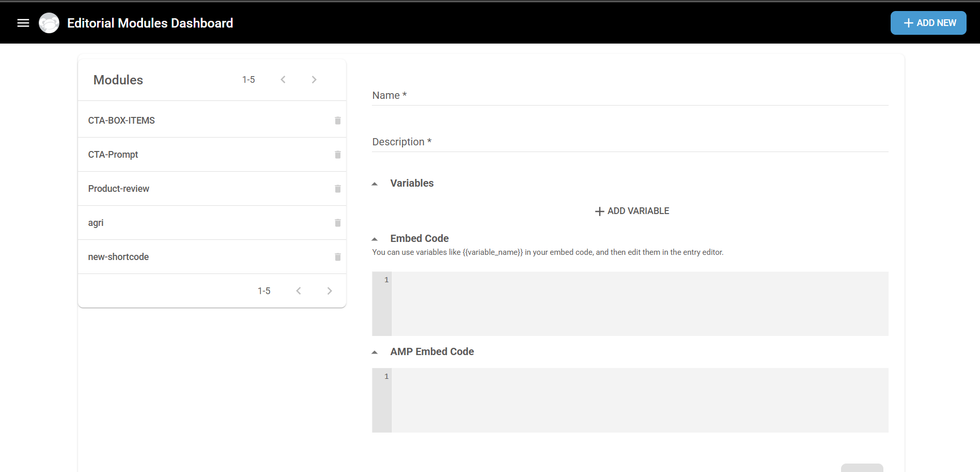
We’re excited to introduce a significant update to our Shortcode Dashboard aimed at improving flexibility, usability, and overall editorial workflow. While the previous version supported key functionalities, it required manual input for variables, which limited discoverability and ease of use for many editors. With the newly enhanced interface, developed under the initiative “Editorial Module Dashboard” we’ve introduced a more structured, user-friendly experience. This includes dynamic variable forms, improved validation, and simplified management through a redesigned UI, enabling editors to confidently add variables with dynamic values with greater efficiency and control.
Add New Shortcode Button
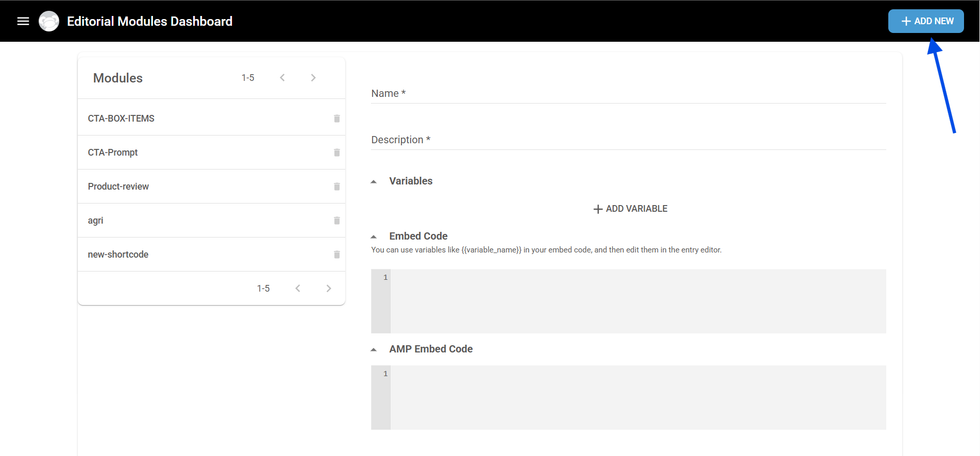
To add New Shortcode you can click on +Add New button at the right top corner
Add/Edit Fields for Shortcodes
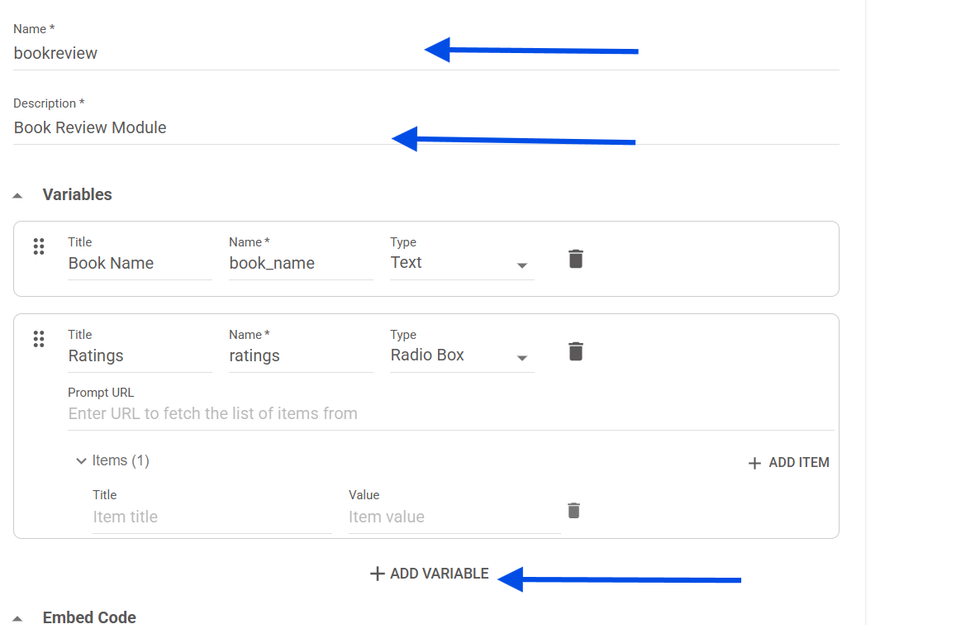
When creating or editing a shortcode in the enhanced dashboard, you’ll encounter the following fields and options:
- Name
Define the name of the shortcode. - Description
Provide a short explanation of what the shortcode does or where it should be used. - + Add Variables
This section allows you to define the dynamic variables that will be part of the shortcode. Each variable includes:- Title – The label visible to editors in the entry editor.
- Name – The internal identifier used in the shortcode logic.
- Type – The format or input method for the variable.
Available Variable Types
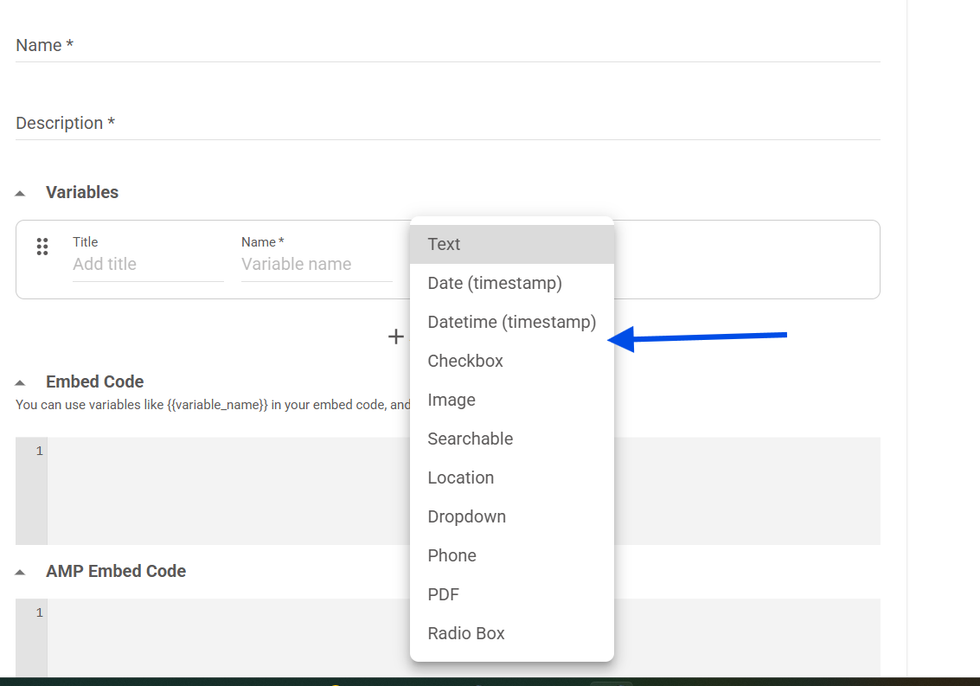
- Text
- Date (timestamp)
- Datetime (timestamp)
- Checkbox
- Image
- Searchable
- Location
- Dropdown
- Phone
- Radio Box
Drag, Drop, and Delete
Drag and Drop
Easily reorder variables by dragging and dropping them into the desired sequence.
Delete Option
Each variable comes with a delete button, enabling you to remove unnecessary or outdated variables with a single click.
Embed Code Field
In the Embed Code field, you can reference variables using the {{variable_name}} format. These variables will be dynamically replaced based on the values provided in the Entry Editor.
Interactive Shortcodes
To see how shortcodes appear and function within the Entry Editor, refer to our related article:
New Entry Editor UX for Interactive Shortcodes
This article provides a detailed look at the improved editing experience and how variables are rendered for real-time customization.
Interested in learning more about how RebelMouse supports New Editorial Module Dashboard [Enhanced Shortcodes]? Contact your account manager or reach out to support@rebelmouse.com today.
Not currently on RebelMouse? Get in touch to streamline your user experience and deliver a better website to your audiences across every touchpoint.
Table of Contents


© 2026 RebelMouse. All rights reserved.
Comments Moderation Tools