
Introduction
We are introducing a set of improvements that give you finer control over how you move, reuse, style, name, and organize your elements and layouts in Layout & Design (L&D), along with several quality-of-life refinements to everyday editing. This document explains what changed and how to use each feature.
Teasers in L&D
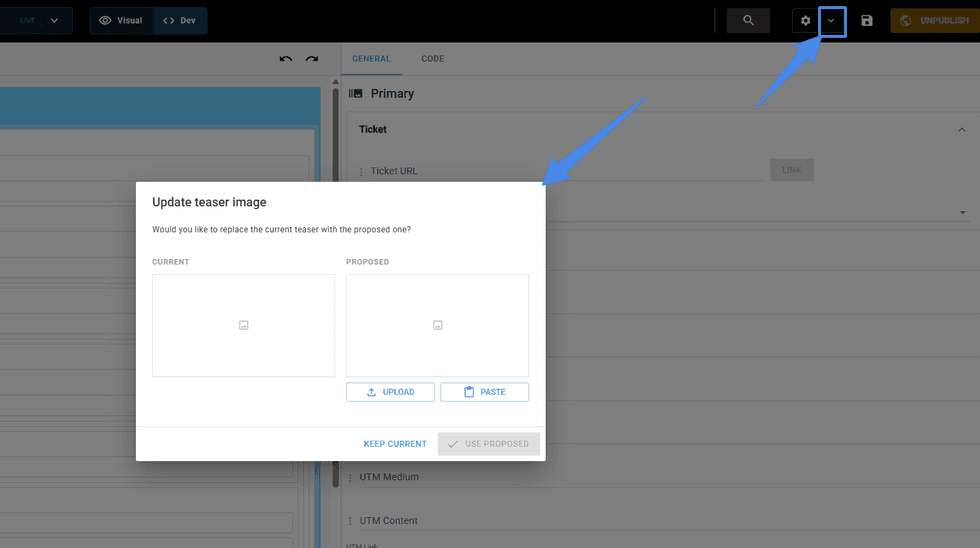
What it does: Teasers are now shown in the sidebar menu. You can take a screenshot of the visual element or layout and add it as a teaser image, making it easier to find and access as you work.
How to use it: While editing Shared Elements or Layouts in L&D, click in the dropdown right next to the settings button and find the Update Teaser Image option. A dialog box will show the current and proposed teaser image. You can either upload from your computer or paste an image as a teaser.
Categorize Shared Elements
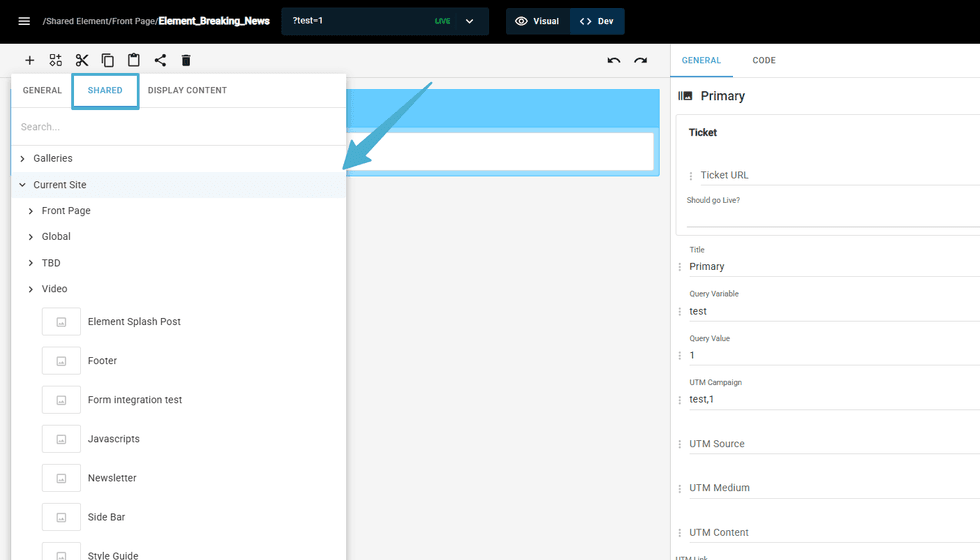
You can now organize Shared Elements into categories (folders), so your library stays tidy and easy to navigate as it grows. Categories appear both when browsing and in dev mode, reducing visual clutter.
Shared Elements Across Sites (Site Network)
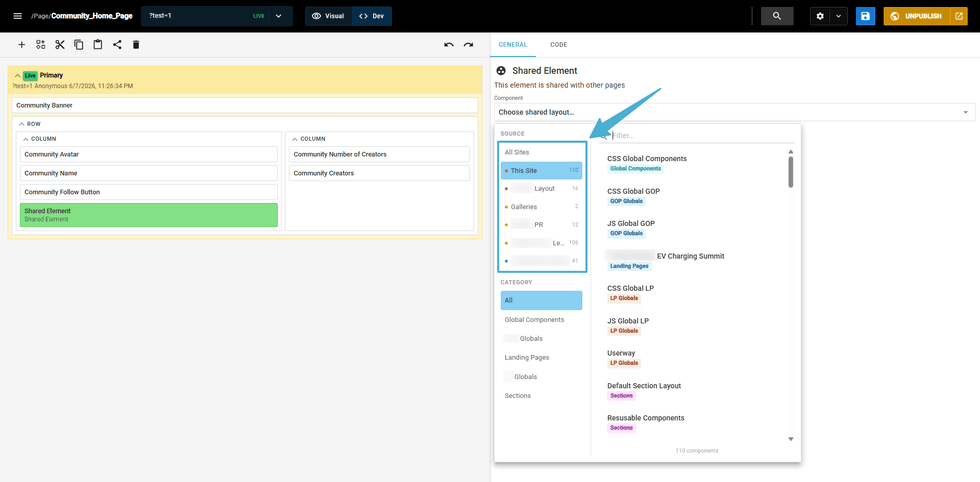
What it does: You can now reuse shared elements across multiple sites in your site network. Build an element once and use it everywhere, keeping consistency without rebuilding from scratch.
How it works: Cross-site reuse relies on a bidirectional relationship between sites. The site that owns an element must grant permission for another site to read through Site Networks. This keeps each site in control of what it shares while still enabling reuse across the network.
Query Parameter and Value in Reference View
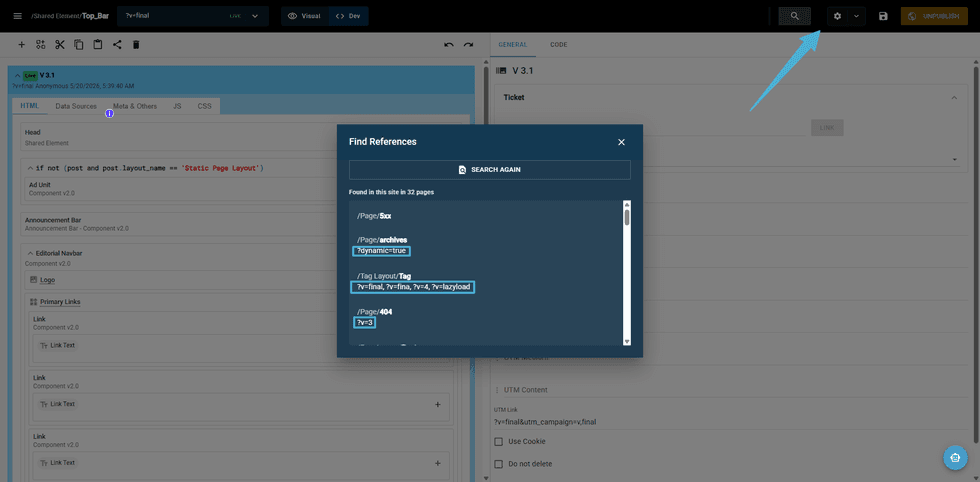
What it does: The Find Reference view now shows the query parameter and its value. This gives you full visibility into what's being passed, so you can quickly locate the corresponding variant and reproduce behavior faster and more accurately.
How to use it: Open the Find Reference view for the item you're inspecting. Alongside each reference, you'll now see the associated query parameter and value.
Find References of Shared Elements used in other sites
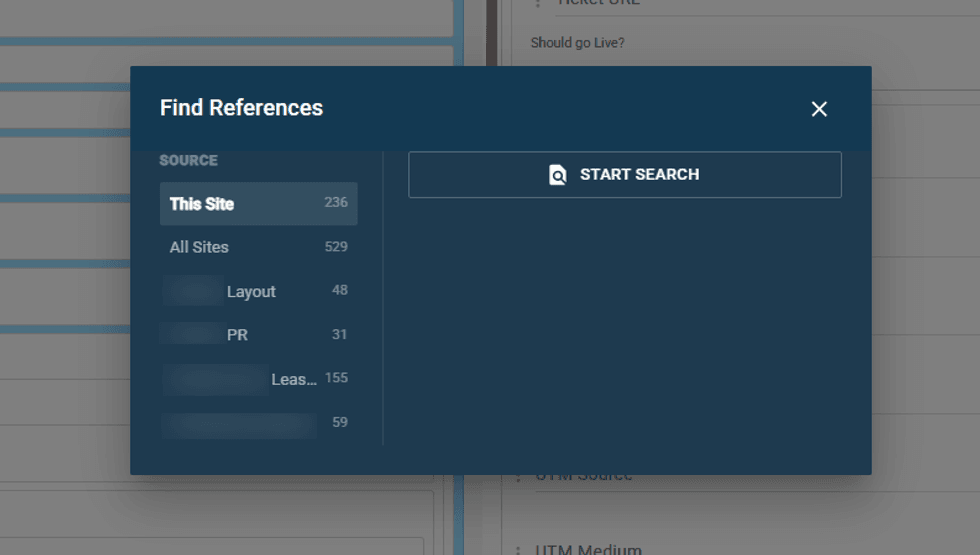
The Find References tool also searches for Shared Elements across other sites within your site network, making it easier to identify where they are being used and manage them more efficiently.
Desing System Export/Import a Single Tab
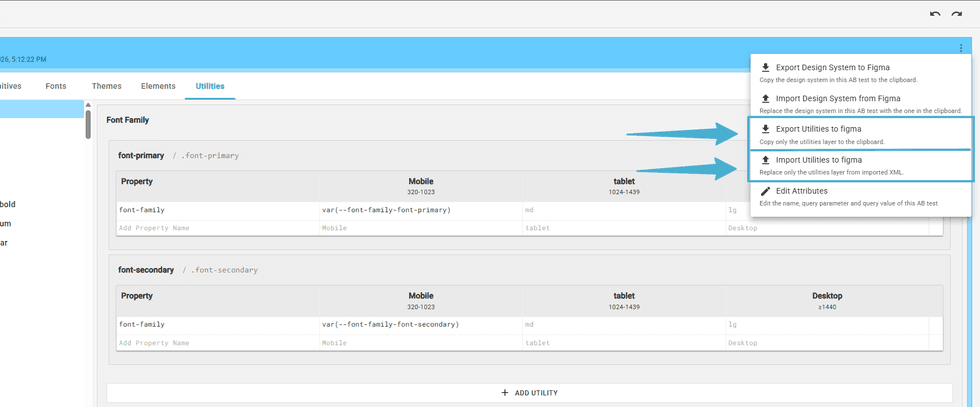
What it does: Previously, moving content meant exporting or importing your entire Design System. You can now export and import a single tab on its own, so you only move what you actually need.
How to use it: From the Design System, choose the tab you want to move and use the export option scoped to that tab. The exported file can then be imported into another Design System the same way, bringing in only that tab.
Detached Vertical Scroll on the Left
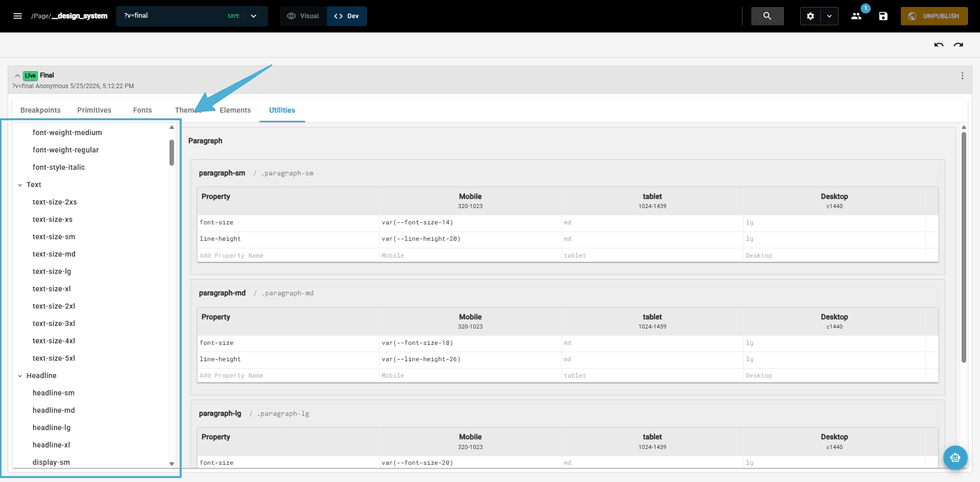
The vertical scroll on the left is now detached from the main area. You can navigate the main content without the side panel scrolling along with it, so your current selection stays in view as you work. This corrects the previous behavior where the panel remained fixed to the main scroll.
Restore Deleted Entity
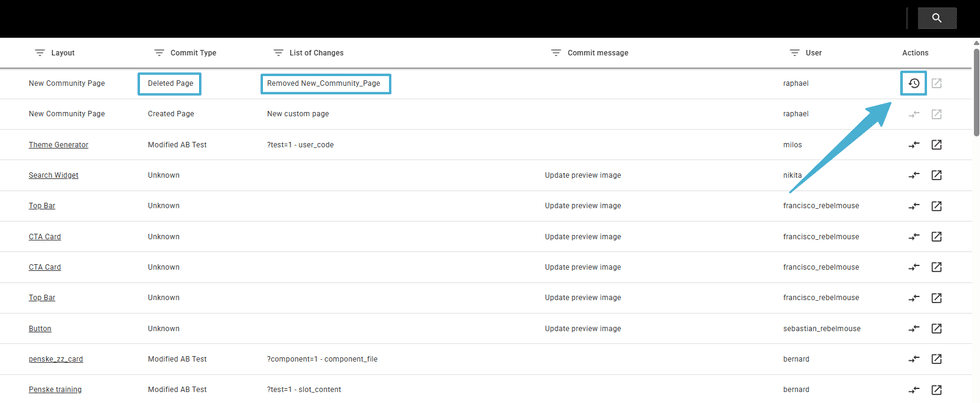
What it does: After deleting an element, layout, or any other entity in the L&D tool, you can now recover it easily with a few clicks.
How to use it: When in the Changelog Dashboard, look for the deleted entity and find the restore icon in the Action column. A pop-up will show asking for confirmation. Once confirmed, the entity is restored.Table of Contents
- Introduction
- Teasers in L&D
- Categorize Shared Elements
- Shared Elements Across Sites (Site Network)
- Query Parameter and Value in Reference View
- Find References of Shared Elements used in other sites
- Desing System Export/Import a Single Tab
- Detached Vertical Scroll on the Left
- Restore Deleted Entity


© 2026 RebelMouse. All rights reserved.
Comments Moderation Tools