
This new Dashboard centralizes the multi-variant experiments tool, allowing you to create, monitor, and decide which variant of a new design, page, or element from your site is performing better.
There is no need to go through various dashboards to organize and implement an experiment to, for example, evaluate a new layout of your homepage. With an intuitive UI, the dashboard offers a wizard interface with step-by-step experiment creation.
You can also quickly stop or edit the ongoing experiments, also allowing you to select the winner variant and implement the corresponding B-Tests, all in the same place.
Additionally, when an experiment is running, on the L&D Tool, B-Tests that are part of experiments show badges with the percentage distributions and are automatically unable to be manually pushed live from L&D. This prevents conflicts on your experiment's results.
How to Access

When accessing the Layout & Design Dashboard, below the entry Bulk Take Live, an option called Traffic Split Experiments will be added.
Click on it and it will take you to our new dashboard, where you can run your multi-variate tests:

This new page is the command center for all your split tests. It will have a table showing every ongoing test with the following columns:
- Title: The name you gave to the test.
- Enabled: An indicator of whether the test is running or not.
- Variations: shows how your website traffic is being split among the different variants (e.g., variant 1 gets 50%, variant 2 gets 50%).
- Involved Layouts/Elements: Shows which specific pages, shared elements, or components of the website are participating in the experiment. Click on any name to go to that page/element.
- Actions: Buttons to manage the ongoing test.
Creating a New Experiment
Click on the add button within the dashboard to create a brand-new test. It will open a simple, step-by-step wizard that will guide you through the process.
Step 1: Basic Information
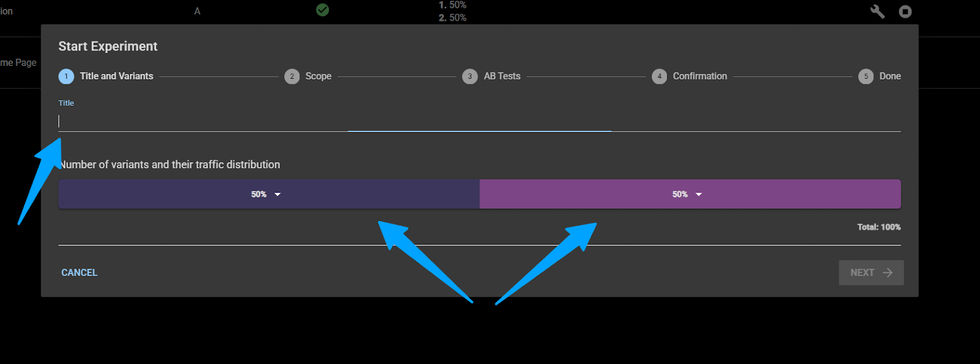
Give your test a Name and choose how many different variants you want to test. To each variant, you will decide what percentage of traffic will be assigned to it (e.g., variant 1 gets 40% and variant 2 gets 60%). You can choose up to 4 different variants to test in the same experiment, but the total amount (sum) of all the percentages needs to be 100%.
Note: Our system will warn you if you try to run experiments in parallel - different experiments using the same B-Tests on variants. This will lead to variant combinations to which there is a limit.
Step 2: Choose Your Pages
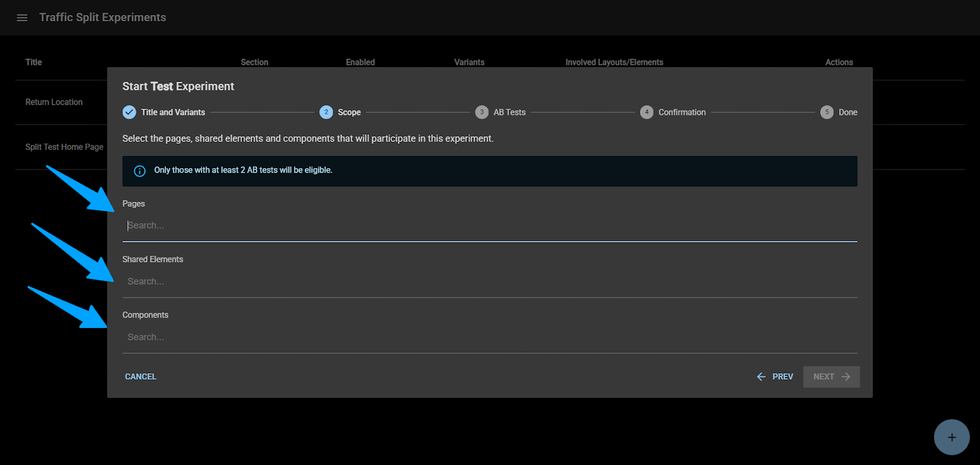
Select the pages, shared elements, or components you want to include in your experiment.
Step 3: Assign the variants
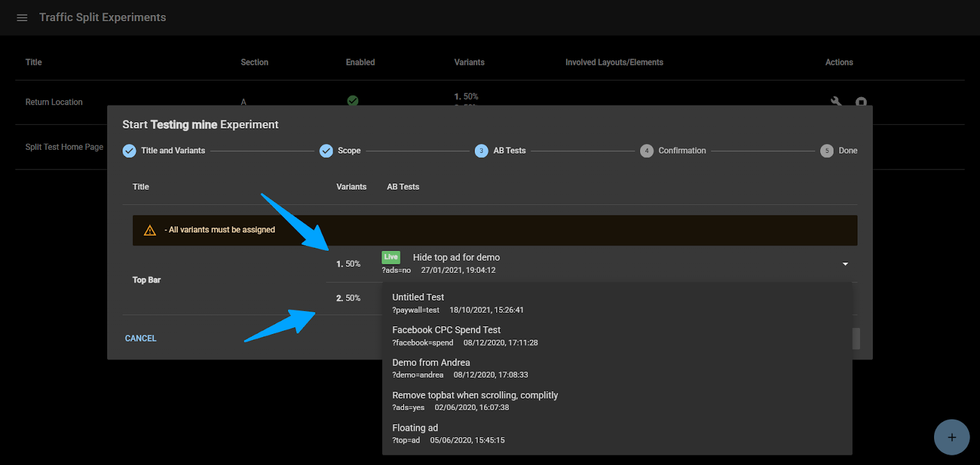
For each selected page, shared element, or component participating in your test, you will assign which A/B test will be used for each variant (e.g., "variant 1 shows the blue button," "variant 2 shows the green button").
Step 4: Review & Confirm
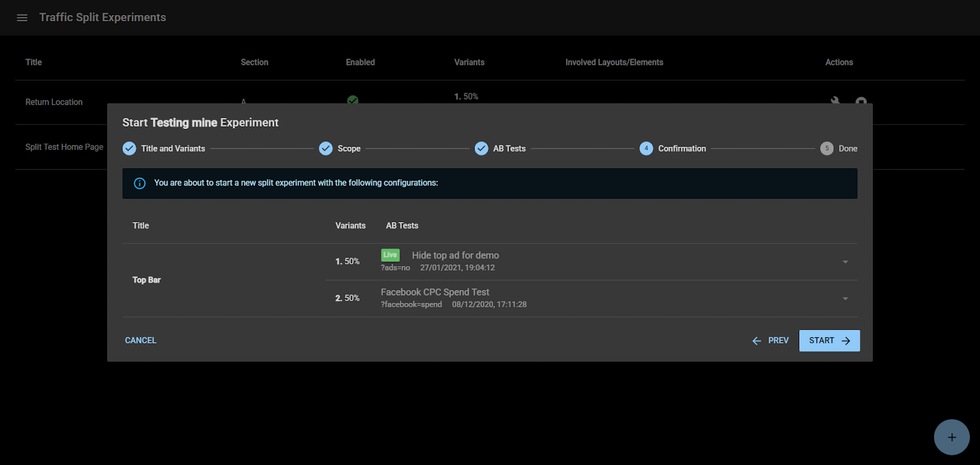
You'll see a final summary of your entire test setup. If everything looks right, you confirm it.
Step 5: Go Live!
The system takes over, automatically starts the test, and begins splitting your website traffic according to your rules.
How to test your experiment
If you want to check if things worked out fine, you can simply go to the page where you made the changes.
For example, you have a new logo design to test, which one could generate more traffic. After creating B-Tests with both logo designs and creating an experiment, you can open an example page where your logo shows, and open the browser DevTools.
After going to the Application tab > Cookies, click on your domain and search for the rebelmouse_abtests cookie. You will be able to see the ID (Section ID) and the variant that is being displayed. In this example, the content shown is for variant #2 (B:2).
If you want to see what the other variants look like, on the Console tab, just add the command document.cookie = “rebelmouse_abtests = X:#” where X is the Section (in the example, is B) and # is the variant number (in the example, is 2).Applying this to the example, since the previous variant we saw was #2, we need to see variant #1. After adding the command to the Console, pressing Enter, and reloading the page, we see the new variant.
Badges on L&D
When a test is active, you will not be able to take live an A/B test in the pages, shared elements, or components that are participating in the experiment.

Since there is no single AB test live, rather all of the ones participating in the experiment are live, this action will be disabled. If you want to modify which AB test needs to be part of the experiment, do it from the dashboard.
Still, as usual, you will be able to modify the AB tests within the page/element/component regardless of whether they are associated with a variant or not.Also, all AB tests participating in the experiment will be shown as live with a small badge that indicates the variant they belong to and the percentage associated to the variant:

Managing the Tests (The Action Buttons)
Stop Button: This ends a test. When you click it, a pop-up appears.

By default, AB tests within the participating pages, shared elements, or components will be kept as they are. This means the AB test that was live before the test will be kept.
Optionally, you can pick a winner variant. For example, if variant 2 performed best, you can select it as the winner, and all of the AB tests associated with variant 2 on the participating pages, shared elements, and components will be marked as the ones live.
The experiment ends once you click Stop, and if there was a selected variant, all AB tests within this variant will become the new LIVE variant.
After it, the test is then removed from your list of experiments.
Edit Button: This lets you change an active test. You can't change its name or its distributions, but you can change which pages, shared elements, or components are part of the experiment or which A/B tests are associated to which variant.
Note: editing an ongoing traffic split experiment may compromise the experiment’s results, so proceed with caution.


© 2026 RebelMouse. All rights reserved.
Comments Moderation Tools