
At RebelMouse, we are a vibrant community of content creators who understand the art of crafting contagious media. Our commitment to innovation drives us to continually refine the creation process, ensuring that every piece of content is poised for social success and revenue generation. In this spirit of continuous improvement, we proudly present our Social Sharing Tool. This powerful tool allows you to seamlessly share your articles on major social platforms like Facebook, X/Twitter, Threads, and Bluesky directly from the Entry Editor.
Connect Social Accounts
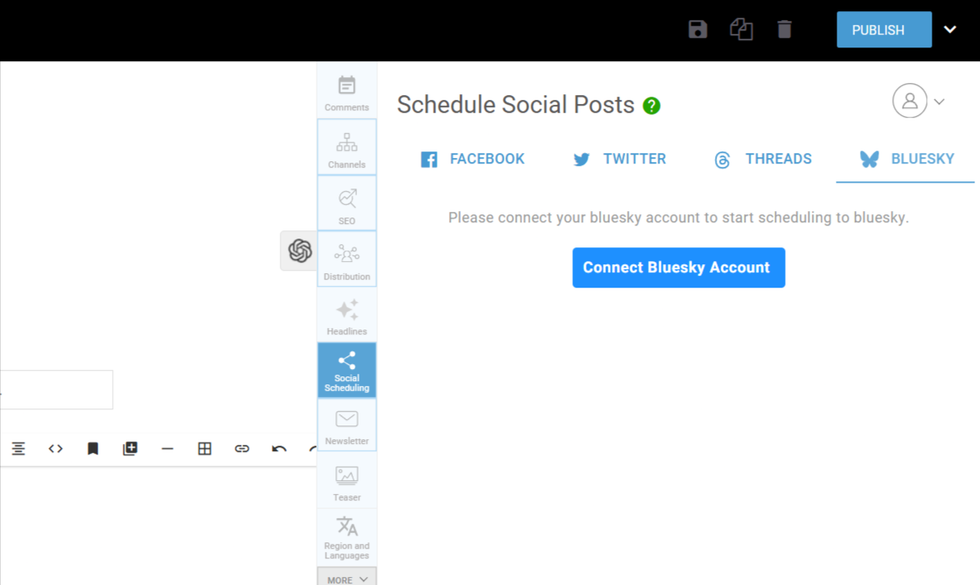
While on the Entry Editor and with the Social Scheduling tab opened, you will find a small menu with options to connect your Facebook, Twitter, Threads, and Bluesky accounts.
If you don’t see a similar button to connect any of your Social Media accounts, reach us at support@rebelmouse.com.
To have them synced with your site, ensure that you are logged in as an admin to the corresponding social media account when attempting to connect it from RebelMouse.
If you are logged out, you will be asked to log in or create an account on Facebook, X/Twitter, Threads, or Bluesky.
Social Sharing Fields
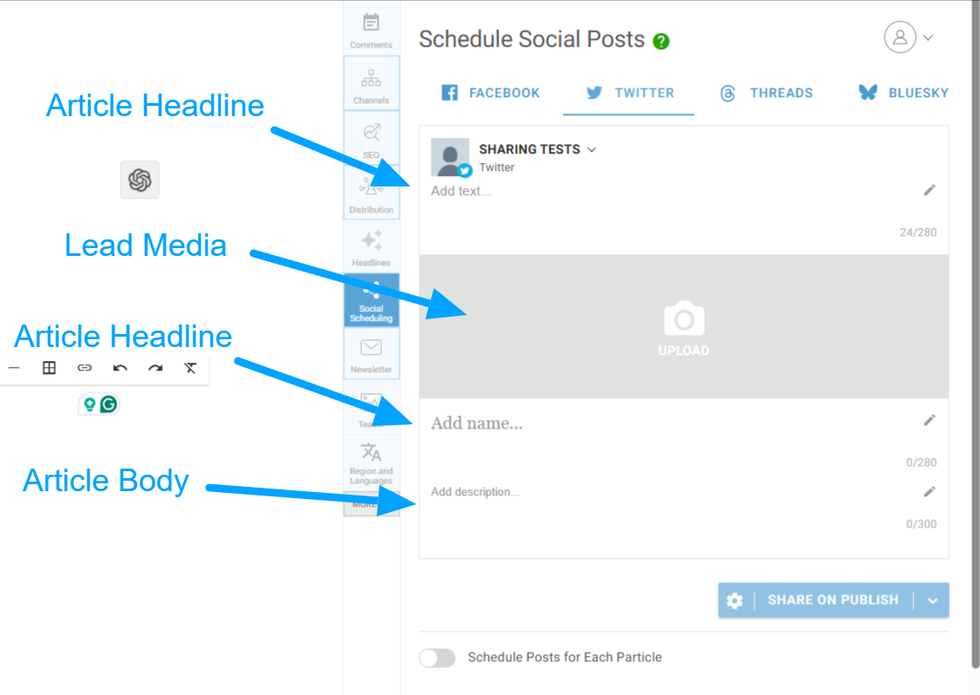
By default, the headline and lead media are copied to the social sharing tab. However, you can curate the details before sharing on social media. You can add or edit the social headline, description, and image that will appear on your Facebook, X/Twitter, Threads, or Bluesky page.
Sharing Buttons: Share on Publish
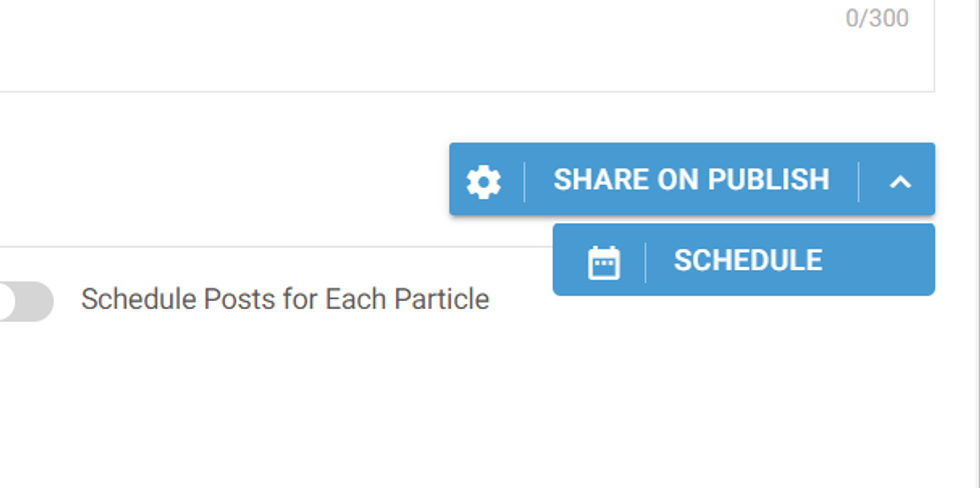
This option will share the article on social media alongside the article's publication on your site.
Sharing Buttons: Schedule
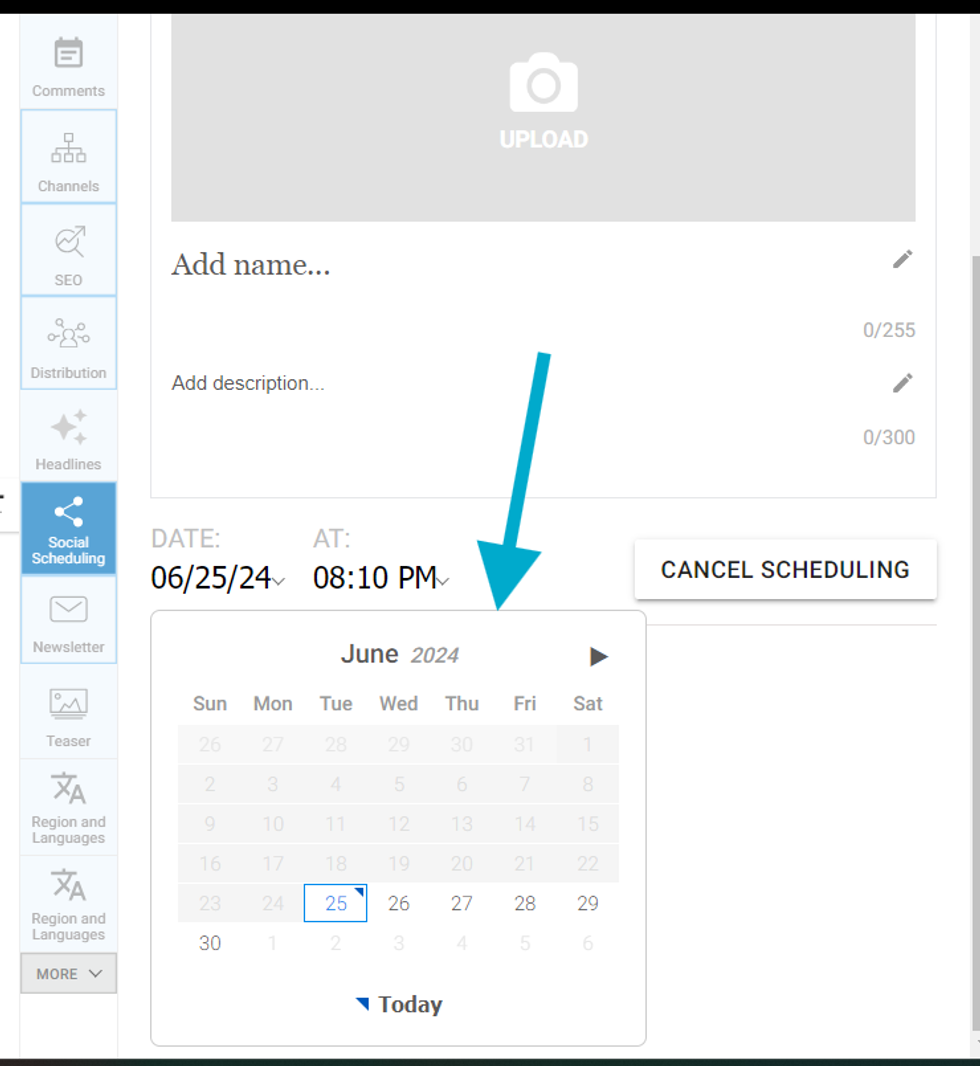
This other option allows you to schedule a date and time to publish your article and share it on social media.
Note: If an article scheduled for social media is still in draft mode on the site, it will be automatically published on the site to avoid a 404 error for users coming from social accounts to the article.
Scheduling Particles on Social
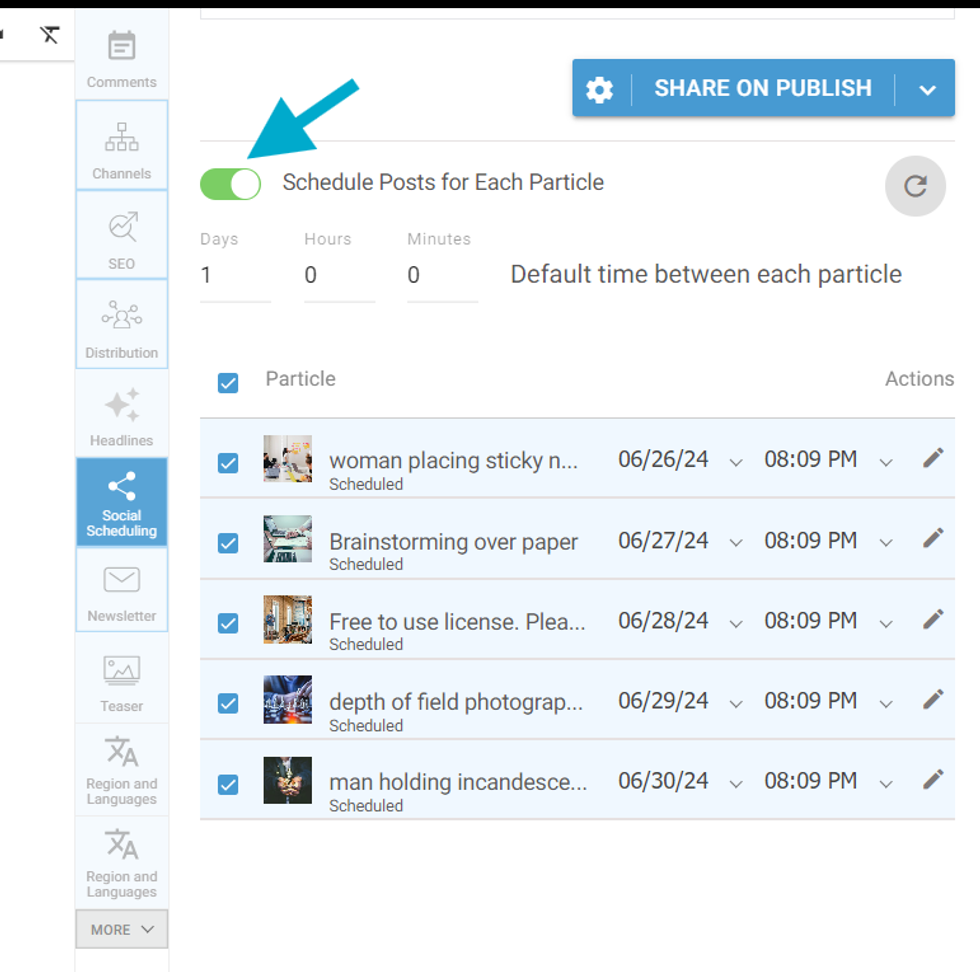
You can schedule each particle by simply toggling "Schedule Post for Each Particle" to ON.
Default Time Between Particles
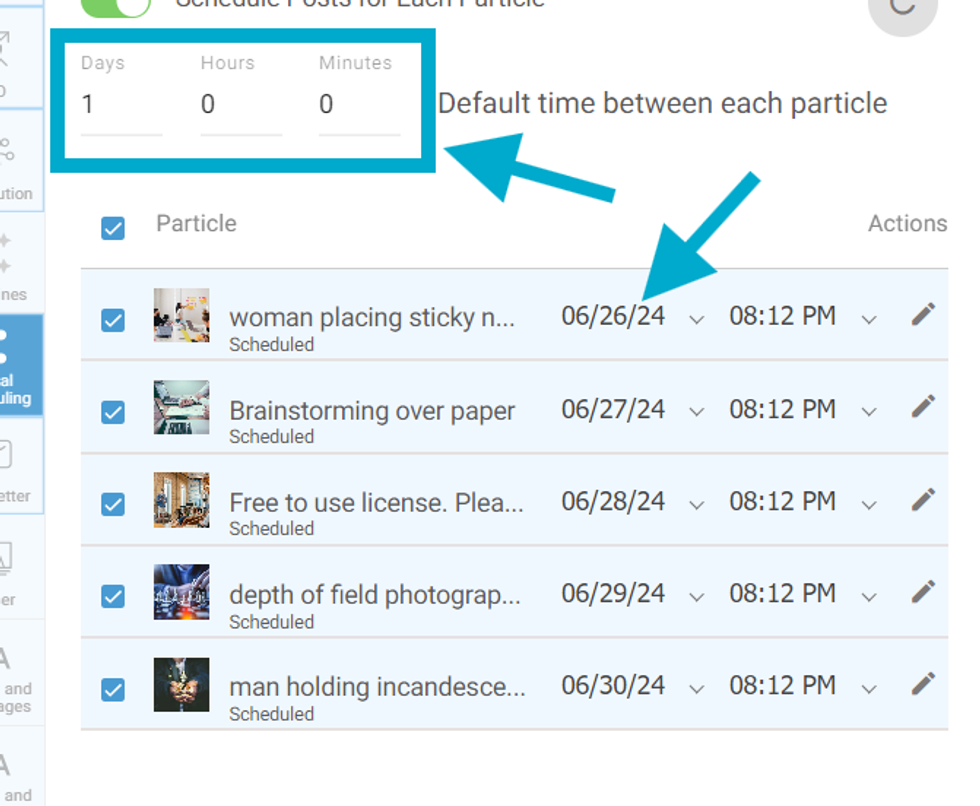
You can set a time difference between particle publishing. These particles will be shared on social media as articles at the scheduled date and time, with the specified interval set.
Actions for Particles Social Scheduling
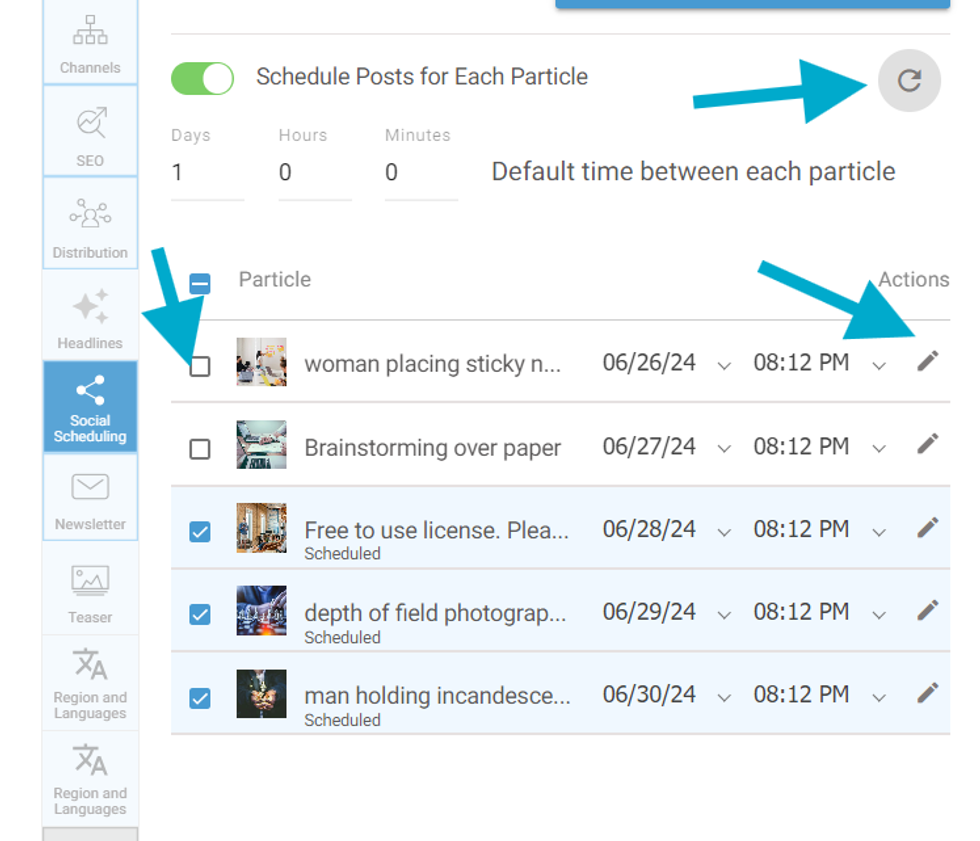
- Select/deselect particles for social scheduling: by clicking on the checkbox next to the particle headline, you to choose which particles will be shared or not on social media.
- Edit Particles: Edit the particle's headline and image by clicking on the edit pencil icon.
- Refresh Particles: If you make any updates to the particles in the assembler, click the refresh button to reflect these changes during social scheduling.
Disconnect the accounts
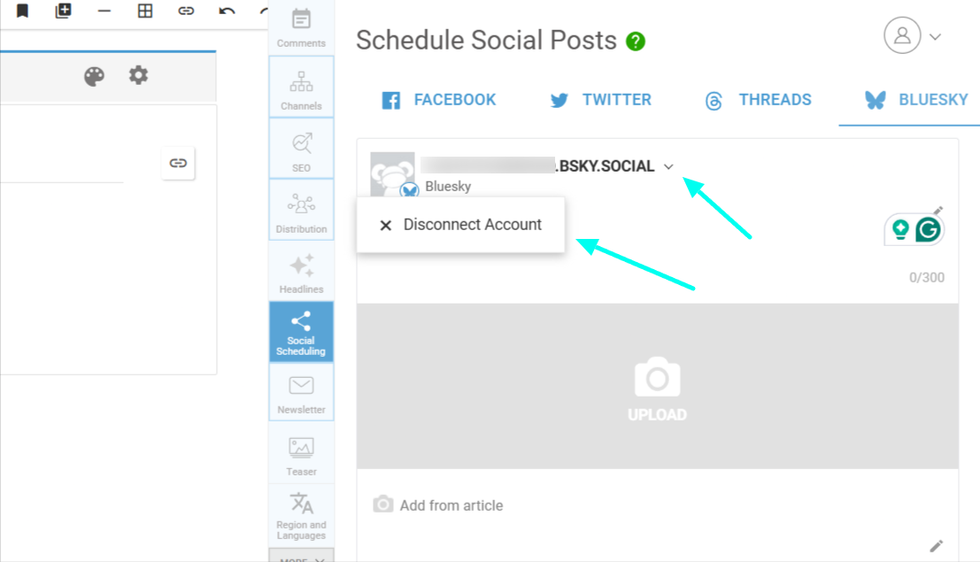
Next to the linked account name, there’s a dropdown menu where you can choose to "Disconnect Account". Clicking it will log out the current account, so you can either reconnect or link a different social media account to your site.


© 2026 RebelMouse. All rights reserved.
Comments Moderation Tools