
The image element in the Layout & Design Tool has been enhanced to streamline your workflow and increase styling flexibility.
New Image Selection Flow
You can now choose an image directly from the Media Library or upload a new one without leaving the Layout & Design Tool.
To add an image:
1. Insert an <image> element.
2. Click on "Choose or Upload Image".
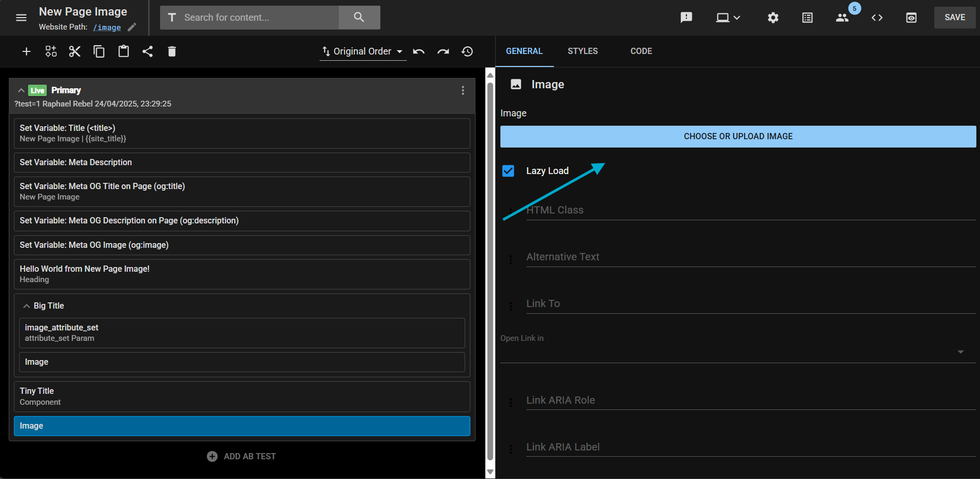
3. A window will open displaying the Media Library.
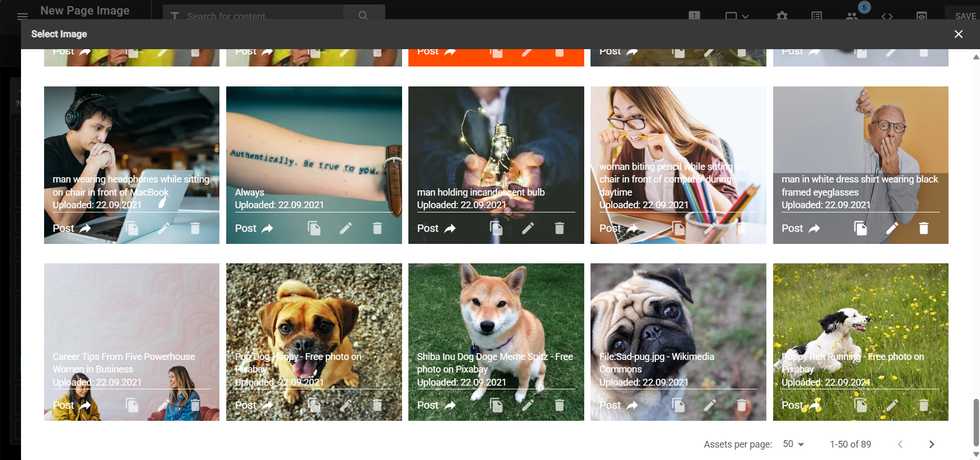
4. Select or upload your desired image.
Image Crop, Copy, and Replace
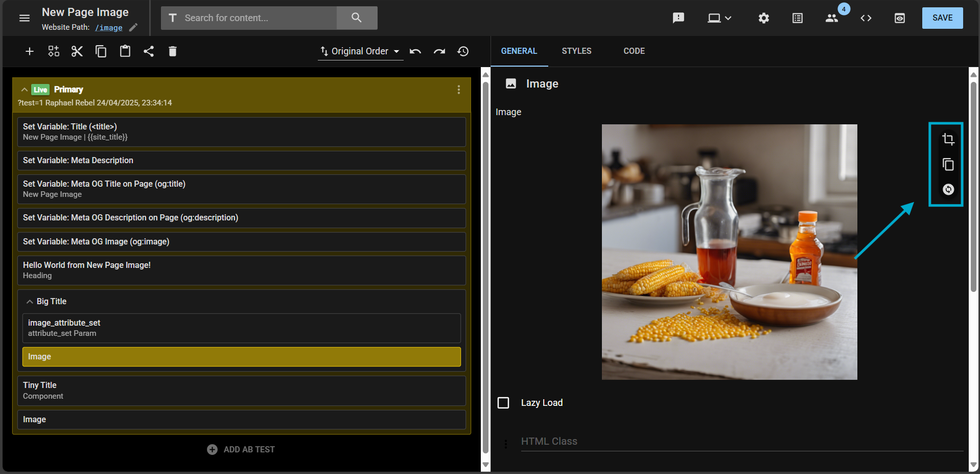
Once an image is selected, you can crop, copy, or replace it.
- To crop the image, click the crop icon.
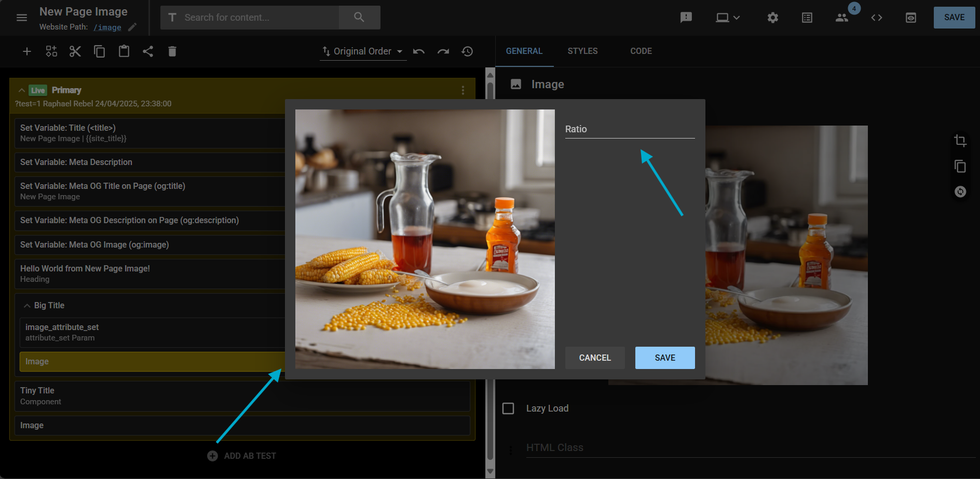
- A pop-up will appear, allowing you to:
- Choose a predefined ratio, or
- Manually crop by clicking and dragging on the image preview.
- Choose a predefined ratio, or
Copy: Copy the image URL for use elsewhere.
Replace: Reopen the Media Library to select a new image.Element HTML Class
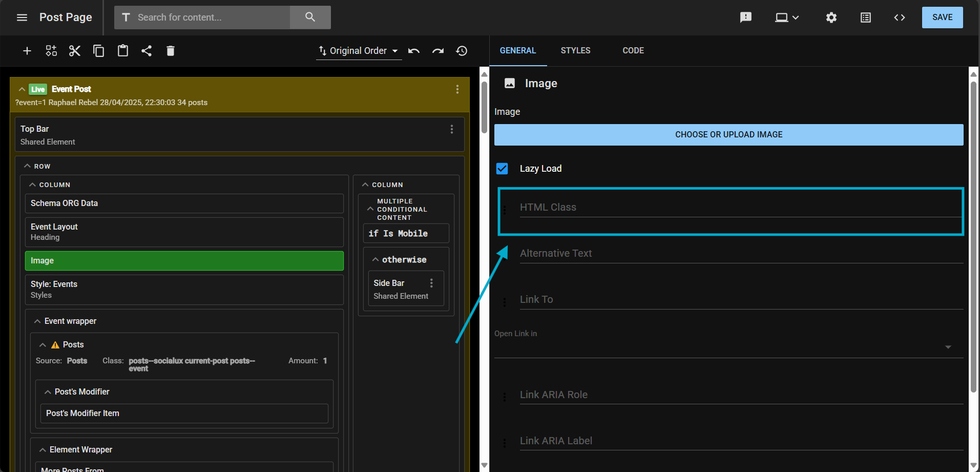
The image element now includes support for the HTML Classes field. This field allows you to assign a CSS class that will be applied directly to the image container.
When a value is entered in the HTML_class attribute of the <image> element, it is appended to the class attribute of the <a> tag that wraps the <img> element.
This functionality mirrors the behavior of the same attribute in the Posts element, offering a consistent and extendable styling method.Attribute sets support
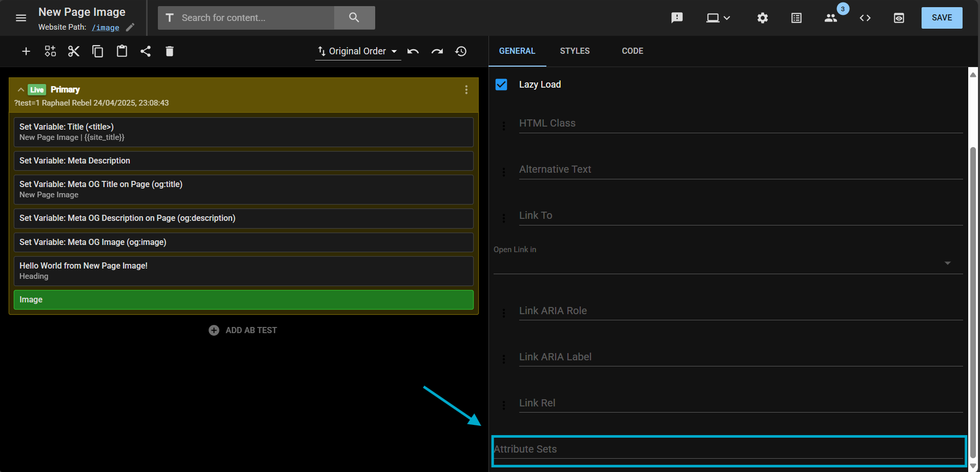
The image element now supports the attribute_sets field, which can be configured directly in the
Layout & Design Tool:
- With the image element selected, scroll to the last field labeled “Attribute Sets.”
- Enter the name of the attribute set you’d like to apply.
- These sets can also be referenced in other elements using the same attribute.
This enhancement enables more dynamic and reusable styling through class-based design systems, giving you greater control and consistency across layouts.


© 2026 RebelMouse. All rights reserved.
Comments Moderation Tools