

What Is Multi-Factor Authentication and Why Does It Matter?
Multi-Factor Authentication (MFA) is a security mechanism that requires users to provide two or more verification factors to gain access to a resource, such as an application, online account, or a VPN. Unlike traditional authentication methods, which rely on a single factor like a password, MFA adds an additional layer of security by requiring extra verification from something the user knows (password), something the user has (security token or smartphone app), and/or something that’s unique to the user (biometric verification).
The significance of MFA in today’s digital landscape cannot be overstated. With the increasing prevalence of data breaches and cyber attacks, relying solely on passwords for security is increasingly risky. MFA enhances security by ensuring that even if one factor, like a password, is compromised, unauthorized access to an account is still prevented without the second factor.
For RebelMouse, implementing MFA means safeguarding user accounts and sensitive data from unauthorized access, which solidifies trust and reliability in the platform and your website.
How to Enable MFA for a User
To bolster security for RebelMouse users, enabling MFA is a straightforward process designed to be user-friendly and efficient. Here’s how users can activate MFA for their accounts:
First, navigate to the Multi-Factor Authentication Management page by appending /r/dashboard/multifactor_management to your site’s URL.
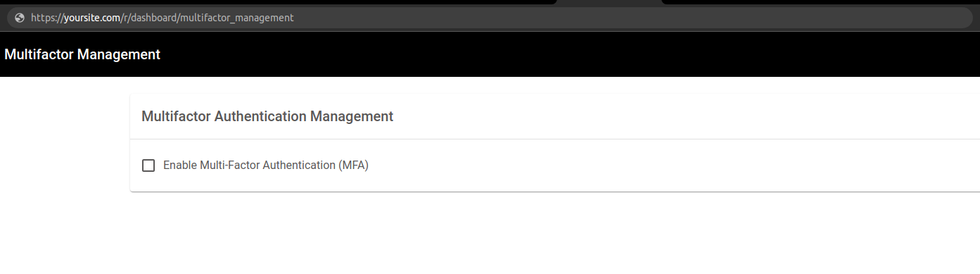
Then, tick the checkbox that says Enable Multi-Factor Authentication (MFA). Upon activation, a QR code will appear on the screen.
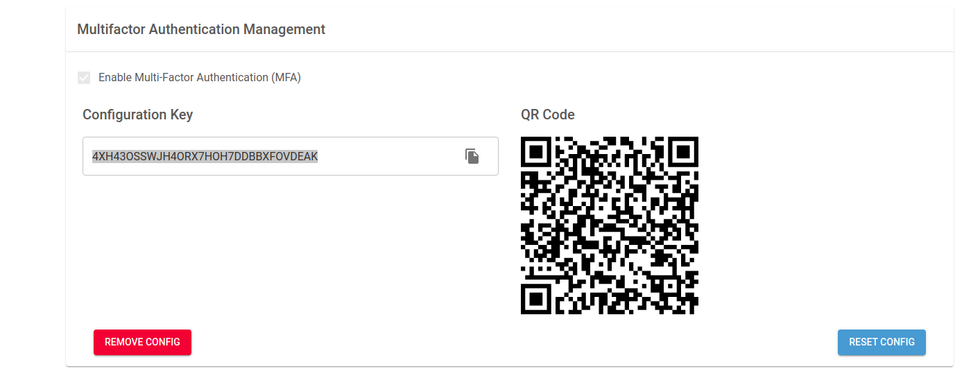
The QR code can be scanned using any authentication app of the user's choice. Examples of authenticator apps include:
- Google Authenticator
- Authy
- Microsoft Authenticator
- LastPass Authenticator
After scanning the QR code, the authentication app will generate a temporary code. Every time the user needs to log in with MFA, they will need to open the app and copy the temporary code.
Login Process With MFA
After MFA has been enabled, the login process will include an additional step for verification:
- Enter your email and password as usual.
- When prompted, open the authentication app on your device and enter the code displayed for your account. This code refreshes periodically for added security.
Limitations
It's important to note that the current implementation of MFA for RebelMouse is designed to work exclusively with email accounts. This means that the primary method of user identification and authentication is through their registered email address. Users should ensure that their email accounts are secure and that they have access to their authentication apps to avoid being locked out of their accounts.
If you have any questions about MFA on RebelMouse, email support@rebelmouse.com or talk to your account manager today.


