
AI Pages gives you the power to create a fully designed web page just by describing what you want. Type your idea in plain language, and the AI builds it for you — no design skills or technical knowledge needed. Your page is hosted and ready to share the moment you publish it.
What You Can Do with AI Pages
- Create a new page project in seconds — the AI handles the design and layout for you
- Make changes at any time by chatting with the AI directly inside the editor
- See your remaining AI credits before every message so you are always in control
- Monitor your credit balance at a glance from the main dashboard sidebar
- Publish your finished page to your own yoursite.rebelboost.com address with one click
- Return to any project instantly — your recent projects are always one click away on the AI Pages home screen
How to Get Started with AI Pages
- Log in to your RebelBoost dashboard and click AI Pages in the left sidebar.
- In the Create a Project section at the top of the page, type a name for your project — for example, my-landing-page.
- Click + Create to set up your project. The AI Pages editor will open automatically.
- Your project will appear under Recent Projects so you can return to it at any time.
How to Build Your Page Using the AI Chat
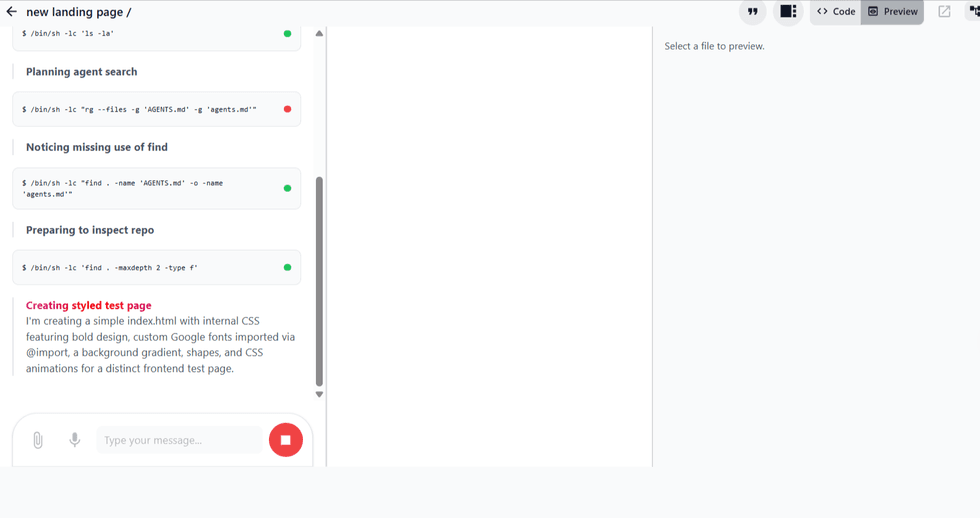
Once inside the editor, the AI chat is where you describe what you want your page to look like — and the AI builds it in real time.
- Find the chat input at the bottom of the editor screen.
- Check the credit counter displayed just above the input — this tells you how many AI interactions you have remaining before you send your message.
- Type your instruction in plain language. For example: "Create a homepage for a coffee shop with a hero image, a menu section, and a contact form."
- Send your message. The AI updates your page instantly. You can keep refining with follow-up messages like "Make the headline bigger" or "Change the button color to blue."
Tip: The more specific your description, the better the result. Include details like the purpose of the page, the sections you need, and the tone you want.
How to Navigate the Editor
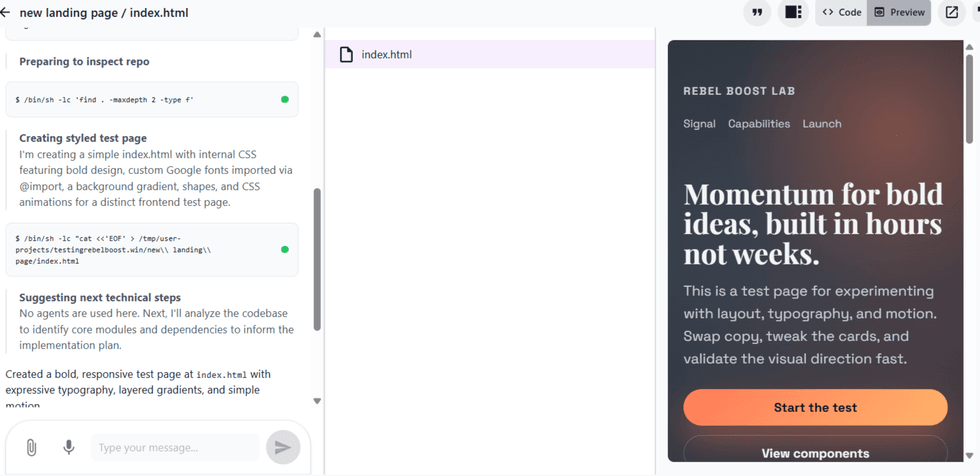
The editor keeps all your tools organized in a collapsible sidebar so you can stay focused on your page.
- Use the sidebar panels to manage your work: Files to browse and switch between pages in your project, History to view and restore previous versions, and Settings to configure your project details.
- To get more screen space, click the >> button to collapse the open panel. Click it again to bring it back.
- To check your credit balance from the main dashboard, click Usage at the bottom of the left sidebar. A progress bar shows how much of your credit allowance remains — it turns yellow as you run low and red when critically low.
How to Publish Your Page
- When your page is ready, click Publish in the editor.
- Your page goes live immediately at your assigned yoursite.rebelboost.com address.
- Share that link anywhere — social media, email campaigns, or client presentations. It is ready to go.
Tip: You can keep editing and re-publishing at any time. Each publish replaces the previous version at the same URL, so your link always stays the same.
Tips and Things to Know
- Each AI chat message uses one credit. Check the counter above the input before starting a longer editing session to make sure you have enough.
- Your credit balance is shared. Whether you check it inside the editor or under Usage in the main dashboard, it always reflects the same pool — so both views stay in sync.
- Dark mode is fully supported. If you prefer working with a dark interface, the AI Pages editor is compatible with no extra setup needed.
- Project names are just for you. Your published page URL is based on your account subdomain, not the project name — so name your projects however works best for you.
- You can delete projects from the home screen. Each project card has a delete icon you can use to remove old projects you no longer need.
Table of Contents


© 2026 RebelMouse. All rights reserved.