
Google launched Preferred Sources, a new feature that lets readers choose which news sources they want to see more often in Google's Top Stories section. This marks a fundamental shift from purely algorithmic ranking to user-controlled curation, and it’s currently live in the U.S. and India.
Why This Matters for Your Publication
- When readers select your website as a preferred source, your articles get priority placement in Google’s Top Stories results.
- Your content can appear in a dedicated “From your sources” carousel on the search results page, or show up more prominently within Top Stories for relevant searches.
- Google says that over half of users select 4+ sources, which shows that people want variety and are actively choosing favorites.
- This gives you a direct way to leverage reader loyalty inside Google’s ecosystem.
How to Select Preferred Sources
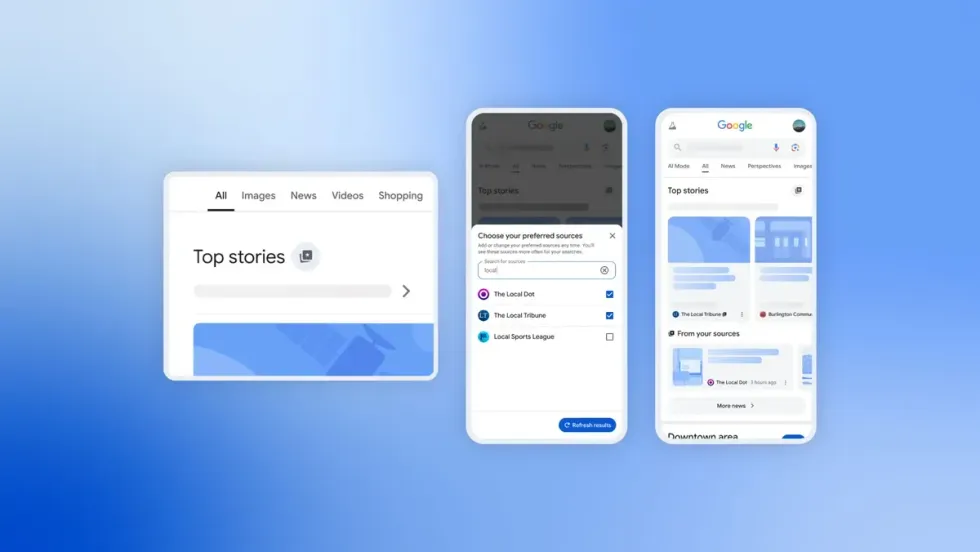
When readers search for news topics through Google, they’ll see a star icon next to the Top Stories section. By clicking that star icon, they can add their favorite sources, including your publication. Once they do, your articles will appear more prominently whenever you publish relevant, timely stories.
How It Displays for Your Readers
Once your readers have added your publication to their list of preferred sources, your website will be given preference when readers search for news articles. If a reader’s news-related search query aligns with an article you’ve recently published on the same topic, your readers will see your article highlighted in the Top Stories section or in the “From your sources” section of their search results page (as illustrated below).
This new feature lets readers customize their own newsfeed experience in Google Search. By taking advantage of it, your publication can stay front and center for readers who already trust your editorial voice.

Implementation Best Practices
It only takes two clicks for a reader to add you as a preferred source. The trick is making it obvious and easy for them to do it. Here’s how:
1. Create a One-Click Link
You can generate a direct link that allows readers to add your publication immediately. Here’s how to do it:
- Use the following URL as the starting point: https://google.com/preferences/source?q=
- Replace
with the URL of your website. - Add this link anywhere you want readers to act, such as on your home page, in email newsletters, and even across social media posts.
You can read more about the process here.
2. Add the Google Badge to Your Site

Google provides an official badge you can display on your website. To add it:
- Download the black or white badge from Google’s official brand resources.
- Place it strategically across your site, such as:
- At the top of articles, ideally near the headline.
- Next to existing social media icons in your navigation or footer.
- Within your articles' content body, after a few paragraphs.
- At the bottom of your articles.
3. Promote It Off of Your Site
- Email: Include a short explainer and the badge in your newsletter.
- Example: Want to see more of our stories on Google? Click here to add us as a preferred source.
- Social Media: Share posts with your badge and link, showing readers how to select your publication in Google. Consider pinning the post for a period of time.
Monitor the Impact of Your Preferred Sources CTAs
Since Google does not provide native tracking for Preferred Sources, you should implement custom click and impression event tracking, monitor results in Google Analytics 4 (GA4), and measure the overall impact on Google News visibility. This enables ongoing optimization based on real performance data, including how many readers engage with the promo and the resulting lift in traffic.
- Add Click Events: Use your tag manager (e.g., Google Tag Manager) to fire a custom GA4 event whenever someone clicks your Preferred Source link or badge. Here's an example GA4 event:
gtag('event', 'preferred_source_click', { link_text: 'Preferred Source Badge', link_url: '{{Click URL}}',});- Track Impressions: If you place the Google badge in multiple spots, set up visibility triggers in your tag manager to log when readers actually see it.
How to Implement
- Set up a tag manager trigger for click events on your Preferred Source badge/button and fire a GA4 event.
- Configure visibility/scroll triggers in your tag manager for when the badge enters the viewport to send impression-like events.
- Register custom parameters in GA4, in case they are not already registered (e.g., link_text, link_url) so you can report on them to the "preferred_source_click" event.
- Use GA4’s Acquisition reports to follow the occurrences of the event "preferred_source_click" indicating the conversions. You can add the page path to see where the conversions happened, or use the visibility event to evaluate the conversion rate to your site as a preferred source from the button click.
- Compare referral traffic (conversions in the Top Stories):
- Google Search Console ~> search results (web and news)
- In GA4, the traffic will be included in Google Search traffic as google.com (page referrer) and included in the source news.google.com.
- Iterate! A/B test flag placement, wording, and/or badge design to see what drives the most clicks/conversions.
Since this feature just launched, there's a significant first-mover advantage. Publishers who act quickly to educate their readers will capture more Preferred Source selections before their competitors catch on.
Want to discover more about our comprehensive approach to content distribution? Reach out to us today and let’s discuss working together.


