

When you publish to RebelMouse, you don't just get access to a traditional CMS. You're also tapping into an online engagement platform designed to support communities. Building a creators network means your editorial team's content workflow has to operate seamlessly. And this clear path to publish is why clients on our platform can easily set up custom fields they want to show at a profile level for users in their community.
There are four ways to customize these fields:
1. Add New Fields to Our Layout & Design Tool in Global Settings
Set the Name of your field, the Type, and the Control Defaults. This populates the information in the drop-down menu for that field if that's the type of field you've chosen to set up. You can also select a Default Description that will display in the field.
Here's a video of what you can do in the Global Settings to create your custom fields per profile:
2. Edit Custom Fields in Our Users Dashboard
(/core/r_dashboard/users)In the following example, we're adding a Facebook link to a user's profile:
3. Style Fields in Our Layout & Design Tool
Using the variable {{site.specific_data.$name}}, you can call for the custom field you created for your users and then style it.
4. Double-Check Your Settings on Profile Pages
You can double-check your custom field selections on a user's profile page.
5. Group Custom Fields in a User Profile
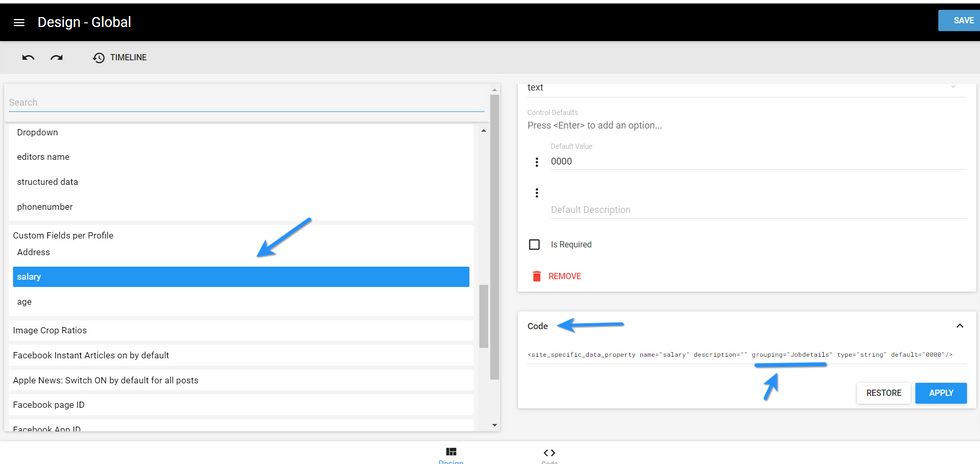
You can also group together custom fields for any user profile. This can be done in Layout & Design Tool's Global Settings. For example, if you want to include a user's job details in their profile, add grouping="jobdetails" in the Code View of a Custom Field element on the right-hand side of the screen.
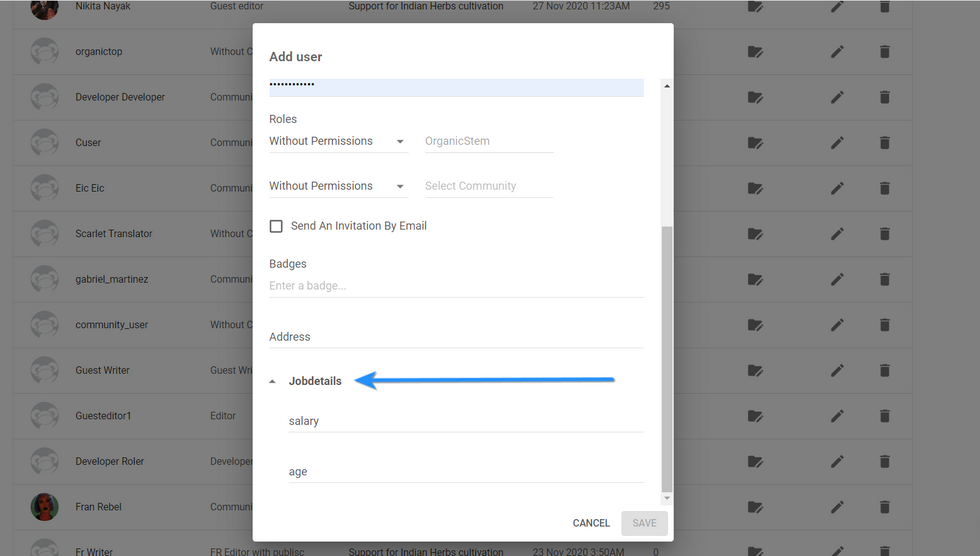
Once added, you will see the Job Details fields as available fields in the User Dashboard. You can fill out the corresponding information when you add a new user or edit an existing user.
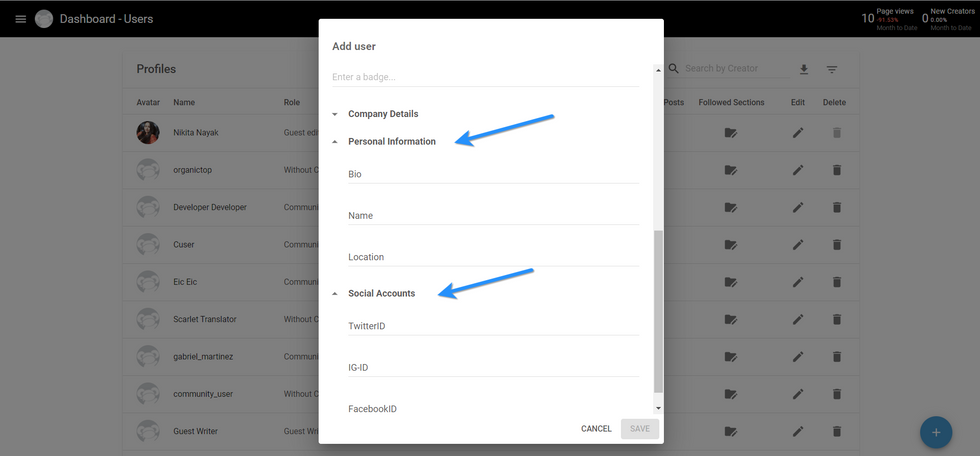
You can group together any relevant information you would like for your user profiles. For example, following the same logic as above, you can group together the links to a user's social media accounts. Then, you can populate the correct links in the user's profile.
If you have any questions about how to set up custom fields for users, contact support@rebelmouse.com today.
Related Articles


