

At RebelMouse, we strive to make our platform as simple and intuitive as possible by continuously providing high levels of customizability.
This is why we've added new functionality that allows you to easily set your site's time zone in Layout & Design Tool. If your site is currently registering time through a different source, it can now be synchronized under one setting.
How to Set Your Site's Time Zone
The time zone for any site can now be easily configured under Global Settings in Layout & Design Tool.
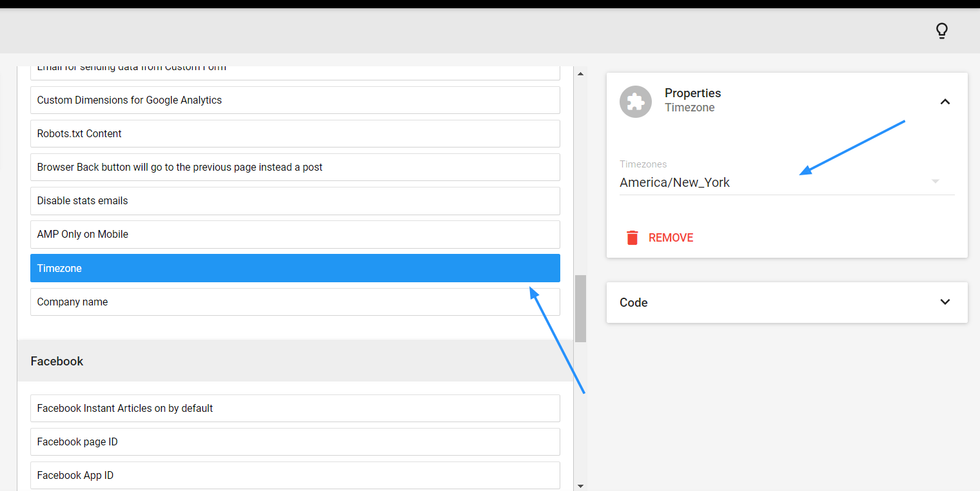
This update offers site owners greater continuity because it sets one time zone for all locations across the entire CMS and live site. Your time zone setting determines the display time for the following features of our platform:
- Posts Dashboard
- Version History
- Stats
- Article Pages
- Newsletter Scheduling
Set Time Zone on an Article Level
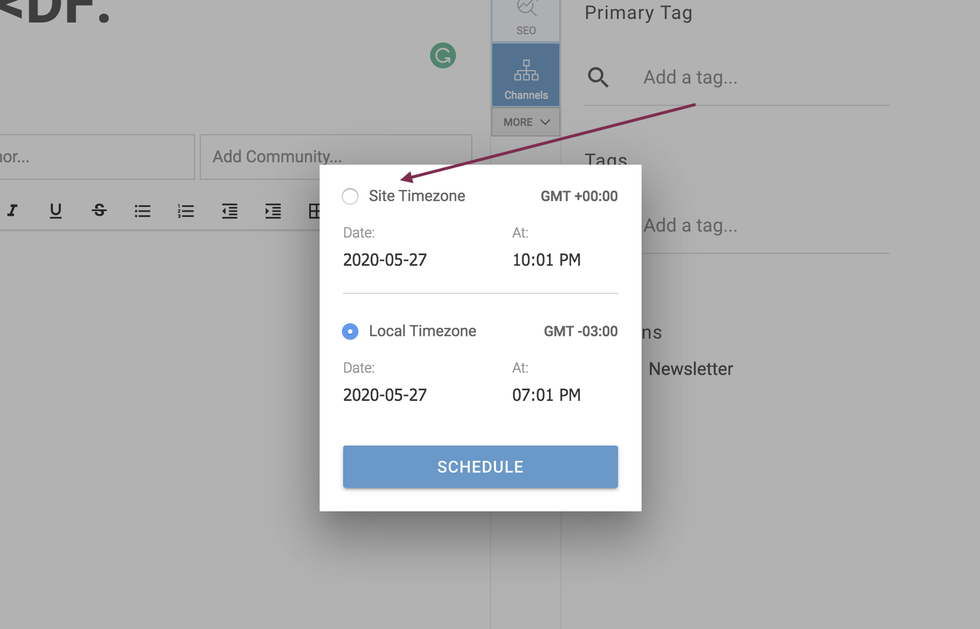
Here's a screencast of the workflow:


